
Connect
Thegram
One account, one memory. Connect ChatGPT or Claude with OAuth, or use a scoped API key with coding agents and your own MCP-compatible service.
Use Thegram Cloud in your browser without a desktop installation. The legacy Mac DMG and standalone Viewer site are retired public entry points; existing mobile readers and agent connections are separate.
- 01ChatGPTThe Thegram plugin for chats and dotsOAuth sign-in
- 02ClaudeConnect Thegram through Claude’s MCP connectorsOAuth sign-in
- 03Coding agentsClaude Code, Codex, OpenCode and OMPScoped API key · Node.js 22+
Using a cloud agent? Connect Muse, a dot or Grok. Google CC is coming soon. Building agents on Cloudflare? Add Thegram to your agent. Connecting another service? Set up API access.
Shared memory workflow
The right facts.
The right records.
The shared skill classifies facts by meaning: choices become decisions, tracked work updates the same task, measurements keep a stable metric, and meaningful dated occurrences become events. A commit is provenance, not automatically an event.
Widget data stays truthful: proposed decisions remain proposed, incomplete work stays incomplete, and metric trends use real observations. Every document follows one record vocabulary, so a status means the same on the dashboard and in every agent: a mitigated risk is still open and a resolved one is done. Team, presence and sync widgets also need their runtime capabilities.
Scheduled automations record one run per execution and keep each found item once with its link, time, source and topic, so the research, monitoring and collected-log dashboards show what is new, the runs and each watched target. Agents keep each piece of work as one task with its steps, so the AI work board shows who is doing what and how the work went.
Coding-agent package · 3.4.0 Portable cloud plugin · 2.3.0
Source commits and SHA-256 hashes. Install through your host's supported workflow. For an existing private App-backed plugin, preserve its App binding and connection when updating; the portable ZIP is a separate distribution.
01 · ChatGPT
Thegram
in ChatGPT
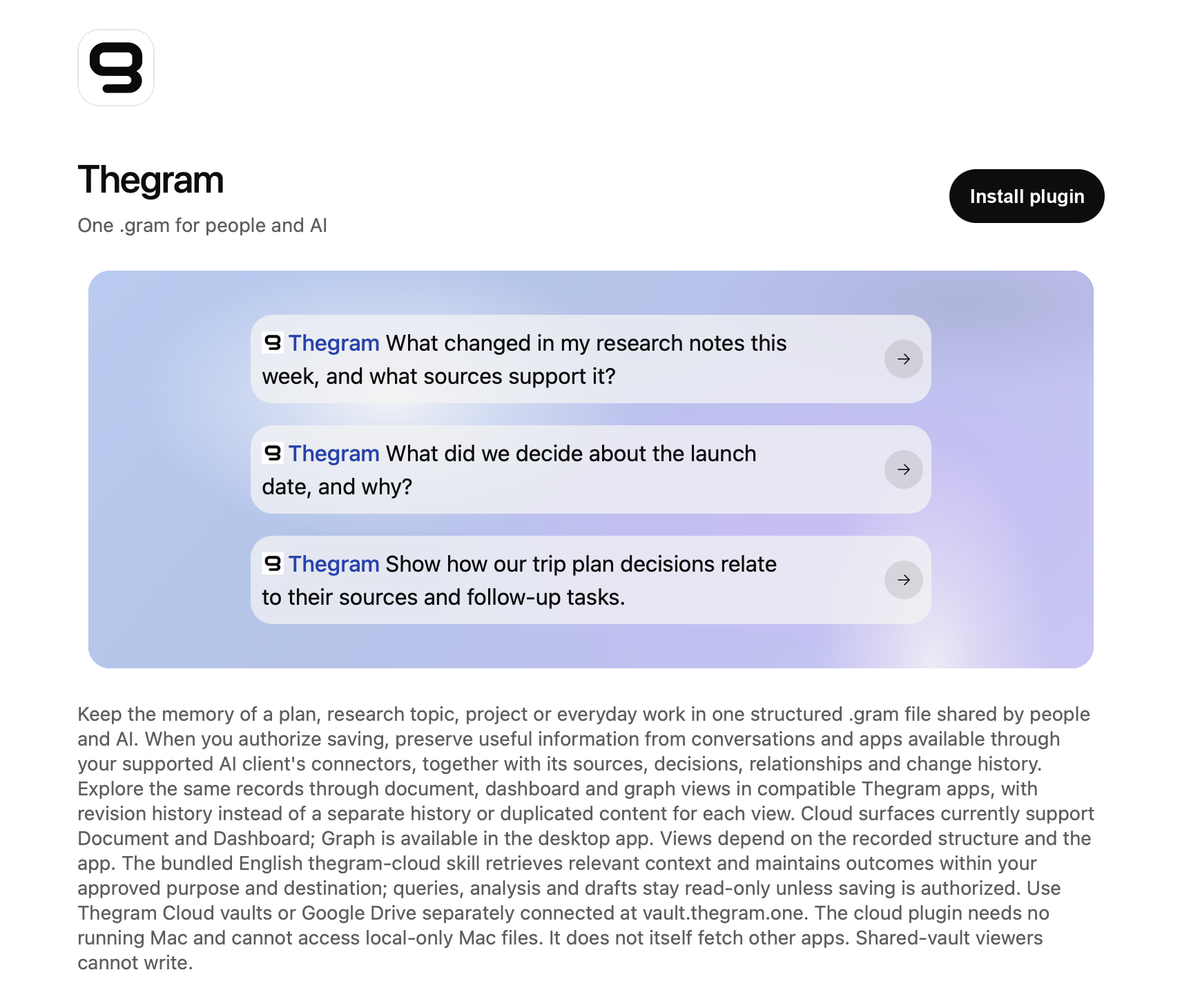
Install the Thegram plugin, sign in and authorize the vaults you want to use. No API key or desktop application is needed.
02 · Claude
Thegram
in Claude
In Claude, open Settings → Connectors and add Thegram with https://vault.thegram.one/mcp. Keep OAuth and Claude’s published identity, then sign in to Thegram and approve the intended vaults.
The connector supplies MCP tools. The shared Thegram cloud skill supplies the memory workflow; a custom connection does not install that skill automatically.
Open Claude03 · Coding agents
Your project’s
shared memory
Use one plugin and the same Cloud MCP from Claude Code, Codex, OpenCode or OMP. You need Node.js 22 or later, not a desktop app.
Issue a scoped API key
Open Thegram, sign in and go to Settings → Agents → API keys. Name the key and choose the vaults and permissions it can use. The secret is shown once.
Keep it private. Do not paste it into an agent conversation or commit it to your project.
-
Install the plugin
Ask your agent to follow the canonical guide:
Connect Thegram by following https://thegram.one/install/agents.mdOpen Terminal, run the canonical lines for your agent, then start a new session.
claude mcp remove --scope user thegram >/dev/null 2>&1 || true claude plugin marketplace add thegram-one/thegram-mcp || claude plugin marketplace update thegram-memory claude plugin install thegram-memory@thegram-memory claude plugin update thegram-memory@thegram-memory || truecodex mcp remove thegram >/dev/null 2>&1 || true codex plugin remove thegram@thegram-local >/dev/null 2>&1 || true codex features enable hooks codex plugin marketplace add thegram-one/thegram-mcp || codex plugin marketplace upgrade codex plugin add thegram-memory@thegram-memoryopencode plugin add github:thegram-one/thegram-mcpomp plugin marketplace add thegram-one/thegram-mcp || true omp plugin install thegram-memory@thegram-memory omp plugin marketplace update thegram-memory omp plugin upgrade thegram-memory@thegram-memory --scope userThese client-specific commands are generated from the canonical agent install guide. If a server named thegram was added by hand earlier, use that guide’s host-specific cleanup step.
Connect privately
From the installed plugin directory, run:
node dist/thegram-memory.mjs connect node dist/thegram-memory.mjs doctorPaste the key at the hidden terminal prompt and choose your Cloud vault. Your agent can locate the installed plugin path for you, but should never receive the secret in chat.
Start a new agent session
Each Git repository uses one
@mounts/<vault-id>/<repository>.gramdocument. Worktrees share it. Existing local-only memory is not silently uploaded.What does Thegram remember about this project?
If something goes wrong
The key is rejected
Check its expiry and permissions in Thegram Settings → Agents. Issue a replacement for a revoked key. Do not switch storage or fall back to a local app.
Node.js is missing
Install the LTS version from nodejs.org, then open a new terminal.

04 · Muse
Thegram
in Muse
Muse, Meta’s personal agent, connects to Thegram through a Custom Connector. Muse keeps a scoped Thegram API key in its Secure Credentials Store and sends it as a Bearer header to https://vault.thegram.one/mcp.
Meta does not review custom connectors, so grant only the vaults Muse needs. Official guide: How Muse works with Connectors.
Issue a key for Muse
Open Thegram and go to Settings → Agents → API keys. Name the key Muse, select only the vaults Muse should use, and choose Read, or Read and write if Muse should record memory. Pick an expiry.
The secret is shown once. Keep it until the next step; do not paste it into a chat.
Ask Muse to create the connector
Send Muse this message:
Create a Custom Connector for Thegram. It is a remote MCP server at https://vault.thegram.one/mcp (Streamable HTTP). Send my Thegram API key on every request as the header Authorization: Bearer <key>, and only to vault.thegram.one. Ask me for the key through the Secure Credentials Store, not in this chat. Then call gram_projects and tell me which vaults are connected.Enter the key in the secure prompt
When Muse asks for the credential, paste the key only into its secure credential prompt. If it asks you to type the key into the conversation, decline and ask for the Secure Credentials Store instead.
Check the connection
Muse should list your vaults from
gram_projects. Then ask it about your work:What does Thegram remember about my projects?
If something goes wrong
HTTP 401 or the key is rejected
The key may be expired, revoked or sent without the Bearer prefix. Issue a replacement in Thegram Settings → Agents and ask Muse to update the connector credential.
A vault is missing or access is denied
A key covers only the vaults and permissions chosen when it was issued and cannot be edited. Issue a new key with the needed scope, update Muse, then revoke the old key.
Disconnect Muse
Disconnect the connector in Muse under Settings → Connectors, then revoke its key in Thegram Settings → Agents. Disconnecting in Muse alone does not revoke the key.

05 · dots
Thegram
in your dot
A dot, ChatGPT’s always-on agent, uses the plugins connected to your ChatGPT account. Connect Thegram with the official Thegram plugin and OAuth sign-in. ChatGPT plugins do not accept API keys, so do not give your dot a Thegram key.
Official guide: Getting started with your dot.
Install the Thegram plugin
Open the plugin in ChatGPT, select Install plugin, sign in to Thegram and approve the vaults you want to use.
Install pluginTurn it on for your dot
Open your dot’s profile and go to Customize → Plugins. Select Thegram, review its permissions and connect it. The Plugins screen uses your shared ChatGPT settings.
Ask your dot
What does Thegram remember about my projects?A dot can review connected information on its own and form memories from it. Choose each vault’s access for ChatGPT in Thegram Settings → Agents.
Let it answer your document chat
Every Thegram document has a chat at the bottom right. Ask your dot once to subscribe to it; afterwards each request you write there reaches the dot, which changes only that document. Check the connection in Thegram Settings → Document chat.
Subscribe to my Thegram document chat requests (chat.task.created) and handle each one in its document.
If something goes wrong
Thegram is not in the dot’s Plugins list
Install the plugin first and connect it to the same ChatGPT account and workspace as your dot. OpenAI notes that the apps available to a dot may differ.
The connection expired
Open the reconnection request in the affected task, or reconnect Thegram under Customize → Plugins.
Disconnect your dot
Disconnect Thegram under Customize → Plugins, then disconnect ChatGPT in Thegram Settings → Agents. Information the dot already obtained stays with the dot until you reset it.

06 · Grok
Thegram
in Grok
Grok connects to Thegram through a custom MCP connector at https://vault.thegram.one/mcp, using OAuth. Nothing runs on your computer.
Official guides: Grok Connectors and Remote MCP Tools for the separate xAI API route.
Access: Manage Thegram Grok’s vault and Google Drive permissions in Thegram Settings → Agents. OAuth scopes are not vault permissions; enable only the data and actions you want Grok to use.
Add a custom connector
Go to grok.com/connectors, select New Connector, then Custom. Enter the connector name and server URL:
Thegramhttps://vault.thegram.one/mcpOn Grok Business and Enterprise, a team admin first adds it at console.x.ai under Grok Business → Connectors → Add Connector → Other. Members then connect it on grok.com.
Enter OAuth settings
Fill in the OAuth form in this order. No API key or separate app registration is needed.
- Client ID
p13ez96egczgttbo5s090- Client secret
- Leave empty
- Authorization endpoint
https://auth.thegram.one/oidc/auth- Token endpoint
https://auth.thegram.one/oidc/token- Scopes
- Remove
profileandemail. Keep onlyopenidandoffline_access. - Token auth method
- None (PKCE only, recommended)
The client ID is public, not a secret. Do not enter
Grokor your API key in that field.Save and connect
Click Save and connect, sign in to your own Thegram account, then click Authorize. Back in Grok, Thegram should appear under Connected with its tools listed.
To let Grok use other vaults or Google Drive, open Thegram Settings → Agents → Thegram Grok and select the access you want to allow.
Using the xAI API
This is a separate backend route, not the Grok web OAuth connector above. Create a scoped key in Thegram Settings → Agents → API keys, select the required vaults and start with Read. Keep both keys in server-side environment variables; allowed_tools below limits the tools exposed to Grok.
curl https://api.x.ai/v1/responses \
  -H "Content-Type: application/json" \
  -H "Authorization: Bearer $XAI_API_KEY" \
  -d @- <<EOF
{
  "model": "grok-4.7",
  "input": [{
    "role": "user",
    "content": "What does Thegram remember about my projects?"
  }],
  "tools": [{
    "type": "mcp",
    "server_url": "https://vault.thegram.one/mcp",
    "server_label": "thegram",
    "allowed_tools": [
      "gram_projects", "gram_brief", "gram_read",
      "gram_recall", "gram_context"
    ],
    "authorization": "$THEGRAM_API_KEY"
  }]
}
EOFWith the xAI Python SDK, pass the same values to xai_sdk.tools.mcp(...); the SDK names the tool filter allowed_tool_names.
The xAI API authorization format has not been verified with a live request. If a valid key returns HTTP 401, use "headers": {"Authorization": "Bearer <THEGRAM_API_KEY>"} instead of authorization (extra_headers in the Python SDK).
If something goes wrong
invalid_client
Use the shared public client ID shown above. Do not enter Grok as the client ID or provide a client secret.
invalid_scope
Remove profile and email; keep only openid and offline_access.
A vault or Google Drive is missing
Open Thegram Settings → Agents → Thegram Grok and allow the vault or Drive account you want to use. Do not grant broader access than needed.
Disconnect Grok
Remove the connector in Grok, then disconnect Thegram Grok in Thegram Settings → Agents.

07 · Cloudflare
Thegram in your
Cloudflare agent
Agents you build on Cloudflare can use Thegram as a remote MCP server. Connect it from the Agents SDK in your own Worker, or put it behind an MCP server portal in Cloudflare One so your team reaches it through one approved endpoint.
Official guides: McpClient API and MCP server portals.
Issue a key for the agent
Open Thegram and go to Settings → Agents → API keys. Name the key after the Worker or portal, select only the vaults it needs, and start with Read. The secret is shown once.
Store it as a Worker secret
From your Agents project, store the key as an encrypted secret instead of writing it into code or
wranglerconfiguration:npx wrangler secret put THEGRAM_API_KEYConnect from your agent
Call
addMcpServerwith a customAuthorizationheader. The connection is kept in the agent’s storage.await this.addMcpServer("thegram", "https://vault.thegram.one/mcp", { transport: { headers: { Authorization: `Bearer ${this.env.THEGRAM_API_KEY}` }, }, });Then hand the tools to your model with
tools: this.mcp.getAITools().Verify without changing data
When
addMcpServerreturnsready, ask the agent to callgram_projectsand report the connected vaults. Do not create a test document to prove the connection.
Through an MCP server portal
Cloudflare One portals need an active domain on Cloudflare and an identity provider in Zero Trust. The dashboard’s Add MCP server form sets up OAuth with dynamic client registration, which Thegram does not offer, so add Thegram with the API and a bearer credential:
curl "https://api.cloudflare.com/client/v4/accounts/$CF_ACCOUNT_ID/access/ai-controls/mcp/servers" \
  --request POST \
  --header "Authorization: Bearer $CLOUDFLARE_API_TOKEN" \
  --json @- <<EOF
{
  "name": "Thegram",
  "hostname": "https://vault.thegram.one/mcp",
  "auth_type": "bearer",
  "auth_credentials": "$THEGRAM_API_KEY"
}
EOFThe portal sends the key as Authorization: Bearer. Then, in Zero Trust → Access controls → MCP Portals, add the server to a portal and set Access policies. Everyone the portal admits works with this one key, so give it the narrowest vaults and read access unless writes are required.
If something goes wrong
addMcpServer returns authenticating
The Authorization header did not reach Thegram, so it offered OAuth instead. Check that the secret exists in this environment and that the header value starts with Bearer .
HTTP 401 or the key is rejected
The key may be expired or revoked. Issue a replacement in Thegram Settings → Agents, update the Worker secret or portal credential, then revoke the old key.
Disconnect
Remove the server from the agent or portal, then revoke its key in Thegram Settings → Agents. Removing it on Cloudflare alone does not revoke the key.
08 · API services
Thegram in
your service
Connect an external service or your backend directly to Thegram Cloud MCP. Use a remote MCP client that supports Streamable HTTP and a custom Authorization header. No coding-agent plugin or desktop application is required.
This is MCP over HTTP with JSON-RPC 2.0, not a general REST API. OAuth-only connectors should use their OAuth connection instead.
Issue a key for this service
Open Thegram and go to Settings → Agents → API keys. Use the service’s name, select only the required vaults and Drive accounts, and choose the minimum permissions. Start with read access when writes are unnecessary. Keys expire within 90 days.
The secret is shown once. Use a separate key for each service so you can revoke it independently.
Configure the remote MCP connection
Field names vary by service. Select its HTTP or Streamable HTTP MCP connector and use these values:
- MCP endpoint
https://vault.thegram.one/mcp- Authentication
- API key / Bearer token
- Custom header
Authorization: Bearer <THEGRAM_API_KEY>
Replace the placeholder only in the service’s private credential field or secret manager. If it provides a Bearer-token field, enter just the key; if it provides custom headers, use
Authorizationas the name andBearer <THEGRAM_API_KEY>as the value.A custom backend sends HTTPS POST requests with
Content-Type: application/jsonandAccept: application/json, text/event-stream. Let its MCP SDK initialize the connection, negotiate the protocol version, and carry the returned session headers on later requests.Keep credentials on the server
Only connect services you trust: the service receives the key and can access the data it authorizes. Keep the key in an encrypted credential store or server-side secret manager. Never put it in a URL, browser JavaScript, a chat, a public configuration file or request logs.
A key cannot exceed your current vault role or organization policy. A vault grant is not a document-only sandbox. Existing local-only files are not uploaded automatically.
Verify without changing data
Use the service’s connection check, then discover the current tools with MCP
tools/list. Callgram_capabilitiesandgram_projectsto inspect the authorized connection. Only read existing documents in the intended scope; do not create a test document or widen permissions to make a check pass.If the service cannot send a custom header, this API-key connection will not work with that connector. Use its supported OAuth integration or a server-side MCP client instead.
Connection and key management
HTTP 401 or rejected credentials
Check the endpoint, Bearer header, expiry and revocation status. Issue a replacement key if needed and update the service’s private credential. Do not paste the secret into a support conversation.
Access denied or a vault is missing
Check the selected key scopes, current vault membership and organization policy. Do not grant broader permissions automatically.
Disconnect or rotate a service
Revoke its key in Thegram Settings to stop server access. Removing a connection from the external service alone does not revoke the key. For rotation, issue a new scoped key, update the service and verify it, then revoke the old key.
Need help?
support@thegram.one · Coding-agent guide · ChatGPT guide · Cloud agent guide
Read Thegram documents on iPhone and iPad with the App Store app. It is not required for any agent connection.